Panel Setup: Fill
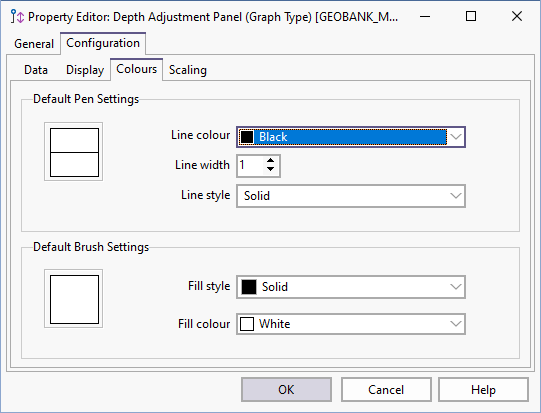
On the Fill page, set pen and brush settings of the panel. For the Bar Type panel, you can also associate the column with a legend and a symbology set that will be used to hatch the column.
In order of descending priority, there are four ways to set the colour properties of the columns in a Bar Type panel:
- Using a Symbology set (Enable drawing of graphic set... option is selected).
- Using the PATTERN_NUMBER for the Symbology set.
- Using a Colour set (Enable drawing of graphic set... option is selected).
- Using DEFAULT_BRUSH and DEFAULT_COLOUR properties in the code. See “Default Brush Settings” below.
Default Pen Settings
The pen colour is the colour used to draw the border and other lines making up the column. The pen style is the line style (solid, dot, dash etc.) and width used to draw the border and other lines making up the column.
Only solid lines are supported for line widths greater than 1.
Default Brush Settings
Set the brush (fill) colour and style options. The brush colour is the colour used to render the background of the template. The fill style is the hatch or stipple used for the background.
When setting DEFAULT_BRUSH (style) properties in the code, the following (integer only) enumerations can be used:
bsSolid = 0
bsClear = 1
bsHorizontal = 2
bsVertical = 3
bsFDiagonal = 4
bsBDiagonal = 5
bsCross = 6
bsDiagCross = 7
When setting the DEFAULT_COLOUR (fill) properties in the code, the following formula can be used to calculate an integer, where R, G and B represent the 0-255 values for these colours. The formula is:
R + G*256 + B*65536
For example:
Red is 255 + 0*256 + 0*65536  = 255
Blue is 0 + 0*256 + 255*65536 = 16711680
Panel Fill
Symbology Sets and Colour Sets are managed under the Graphic Sets node of the Micromine Geobank User Interface tree, and can be referenced by other display objects, such as the columns in the Depth Adjustment window.
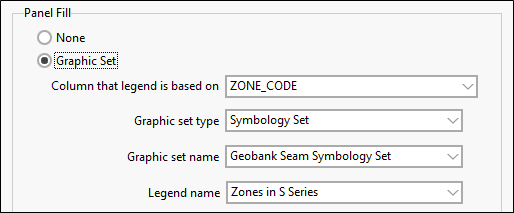
Graphic Set
Select this option if you want to use an optional PATTERN_NO column to associate a hatch pattern with the code returned in the CODE column. This pattern number must be compatible with the nominated symbology set and legend.
Select the Column that legend is based on, the symbology set for Graphic set type and Graphic set name, and an associated Legend.
Scaled Image
Select this option if you want to use a scaled image to hatch the panel.
Select the field to be used for the image information from the Image Source drop-down.
Because the Depth Adjust display has a vertical-only zoom, you can select the Auto-rotate image check box to show core tray images in a meaningful way as zoom is adjusted – the image will be automatically rotated with the orientation of the panel.
Select the Lock aspect ratio check box to maintain the aspect ratio of the Width and Height properties for the scaled image in order to prevent distortion.

Note: The Graphic Set and Scaled Image options can be used alone or in conjunction. If neither option is configured, no fill will be applied.
Display in Foreground
When the Graphic Set and Scaled Image options are both configured, the Display in Foreground options are enabled. You can use the options to select which element is to be displayed in the foreground of the fill.
