Panel Setup: Display
On the Display page of the Property Editor: Depth Adjustment Panel dialog, set the column size and the annotation (if any) of the panel. You can also overlay one column onto the previous column.
Always group with adjustable panels
Select the check box to group the display panel with adjustable panels.
Overlay this column onto the previous column
Select this option if you want this column to be superimposed on the previous column in the list of panels.
When defining an overlay, you should keep in mind that some of the annotation options will not be available. For example, since there can be only one Heading, you should extend the heading of the base panel to include additional information pertaining to the overlay*.
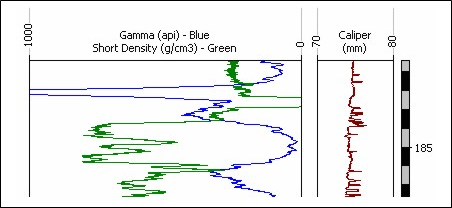
The heading can be divided into two or more lines by using the vertical bar character to indicate line breaks, as illustrated in the following example, where the graph "Short Density" is superimposed on the graph "Gamma":
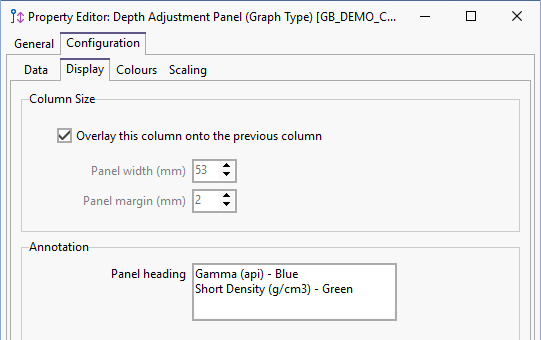
Consequently, the heading for the "Gamma" graph has been set up as follows:
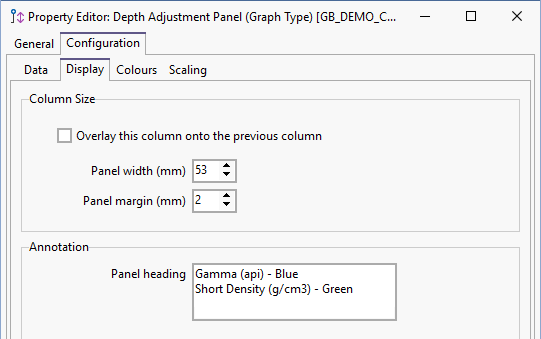
This results in the following display:
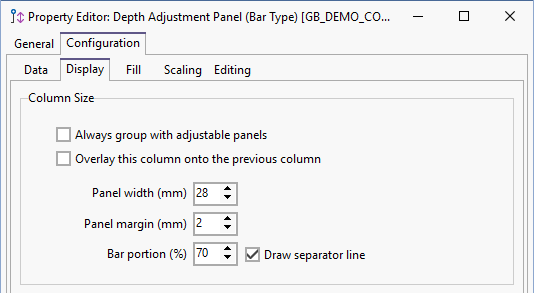
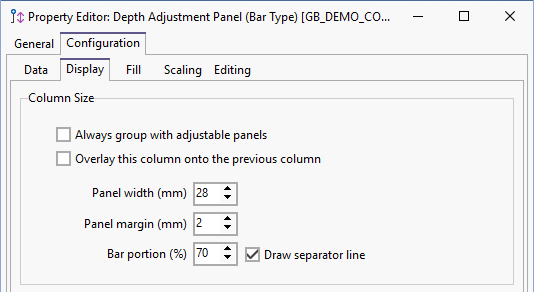
Column Size
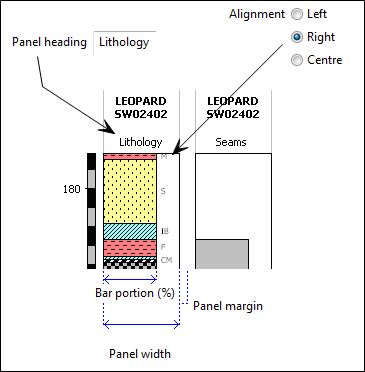
The Bar portion setting is used only for panels of type “Column”. It determines the width of the graphic column relative to the total panel width (expressed as a percentage). If the alignment is “Centre”, the Bar portion is usually 100%. If not, the column width setting should allow enough room for the annotation value, which is retrieved from the nominated annotation field.
The effect of the settings above are illustrated in the following example:
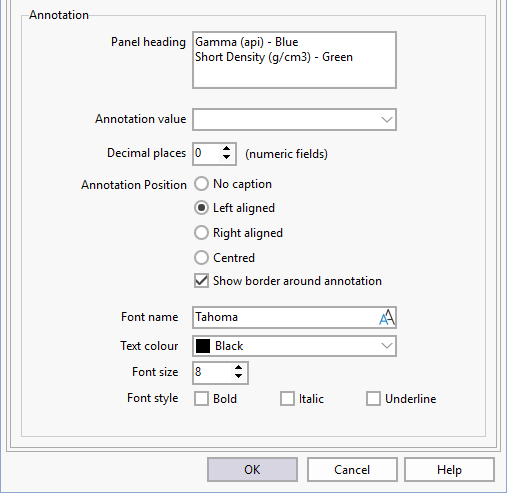
Annotation
Enter a heading for the panel and optionally specify the annotation that will be displayed along the column.
Specify the number of decimal places for numeric values.
Set the alignment of the annotated values using the options provided. If you select the Show border around annotation option, a 1 pixel width black border will be drawn around the annotation in the Depth Adjustment panel:
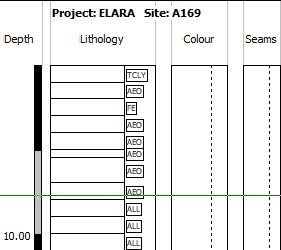
The annotation is bordered and features a solid white background fill. This option is particularly useful with linked lithology patterns, making the annotation easier to read inside the pattern.
Use the Font options to set the font, colour, size and style characteristics of the annotation.