Depth Adjustment Configuration
Use the Configuration page of the Depth Adjustment Property Editor, to configure the settings, scaling and panels of a depth adjustment process.
Settings
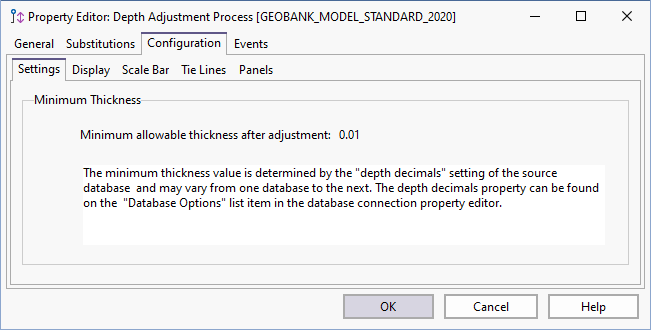
On the Settings page, specify the minimum allowable thickness after adjustment. The minimum thickness value is determined by the depth decimals setting of the source database and may vary from one database to the next. The depth decimals property can be found under Micromine Geobank Options on the Advanced page of the Database Connection Property Editor.
Display
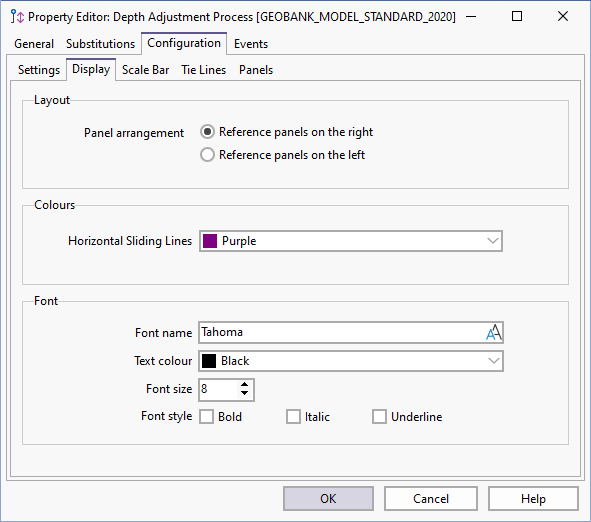
Specify how the reference panels will be arranged. Typically, reference (target) panels will be displayed to the right of the tie line column, and adjustable (source) panels will be displayed to the left.
Colours
When you add or modify a tie line and adjust an end point by clicking on the appropriate "shoulder" of the tie line before dragging it with the mouse, a horizontal sliding bar is displayed to aid in the placement of the line. Select a colour for the Horizontal sliding bar.
Select a colour that will be used to differentiate between Locked intervals from those intervals that can be adjusted.
Scale Bar
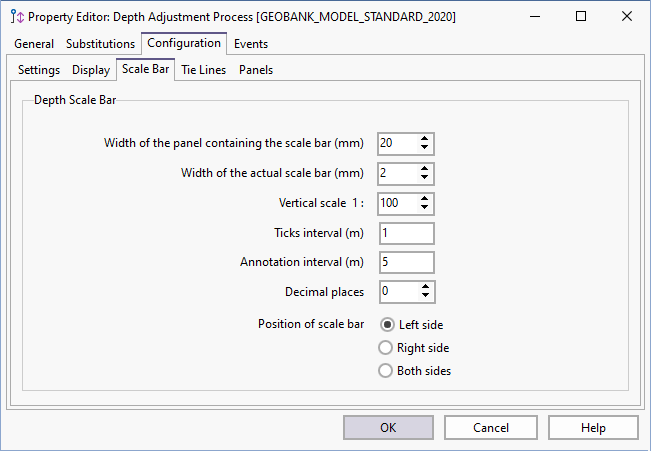
The vertical scale bar is based on downhole depth. Choose a suitable vertical scale, ticks interval and annotation interval for the scale bar. Specify the position of the scale bar on the left, right, or both sides of the depth adjustment window.
Tie Lines
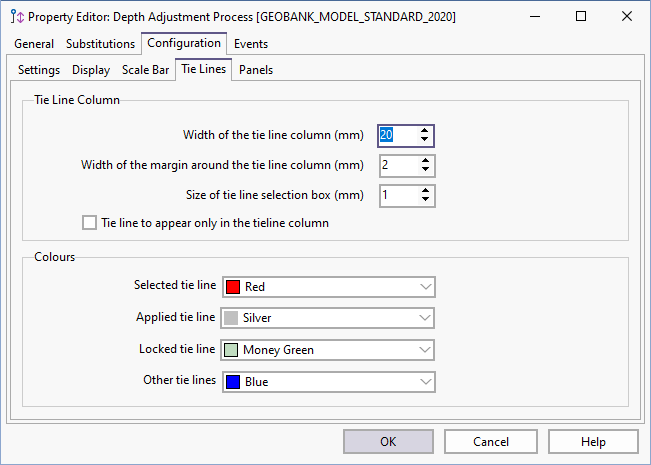
The Tie Line column separates the adjustable panels from the reference panels. It is used to display tie lines and to indicate the approximate positions of the current depth and target depth of each tie line.
Specify the width of the tie line column, the width of the tie line column margin, and the Size of the Tie line selection box.
Colours
Set the display colours for tie lines. By default, the selected tie line is displayed in red, while other tie lines are displayed in blue or grey, depending on their state.
Panels
Use the Panels page to add panels to the depth adjustment layout and to configure the properties of each panel. Use the toolbar to add, delete, rename or arrange panels.
Panels will automatically be grouped by type:
Adjustable panels (Bar Type) and Reference panels (Graph Type).
Use the Up and Down arrows on the toolbar to set the display order of the panels.
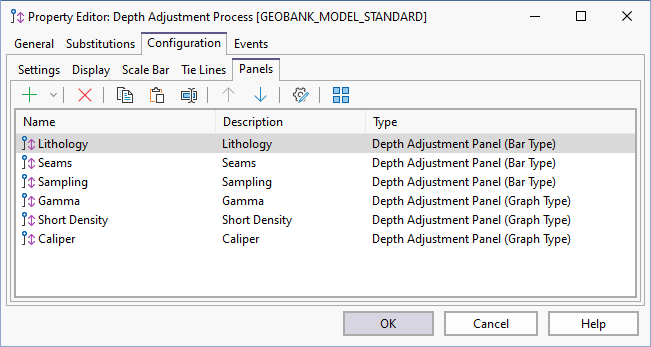
Click the Properties button to open the Property Editor for a Bar Type panel or Graph Type panel.

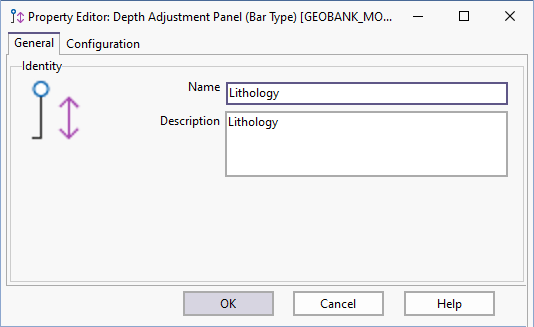
Use the tabbed pages of the Property Editor to configure the SQL scripts, display
properties, edit properties, and scaling of each panel.