Compositing Process: Configuration
Use the Configuration page of the Sample Despatch Property Editor, to configure the compositing process. In this mode of compositing, the system deals with data where there can be only one set of analyses per sample (or optionally, one set of analyses per size fraction per sample).
Data
On the Data page, set up the query that will be used to retrieve the sampling details and analytical results upon which the composite table will be based. Click the Build button to use the SQL Editor to write or load the query for the compositing process.
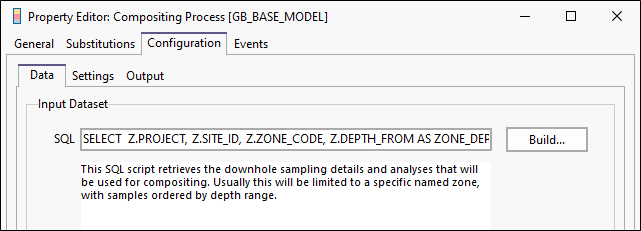
The query must retrieve the downhole sampling details and analyses that will be used for compositing. Usually this will be limited to a specific named zone, with samples ordered by depth range.
When invoked for the first time, the dialog displays an example query to use as an outline for your query.
The Customised Query dialogue displays a list of column names required by this process. If the corresponding column names in your database are different, you can use aliases in the SQL statement to ensure that all the columns are named correctly.
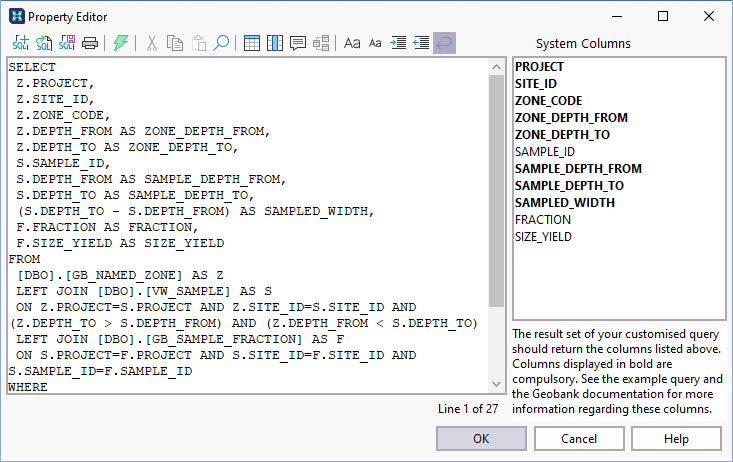
The result set should return the columns listed under System Columns (above). Columns displayed in bold are compulsory. See: Customised Query
Settings
On the Settings page, set display properties and calculation options for each column in the result set.
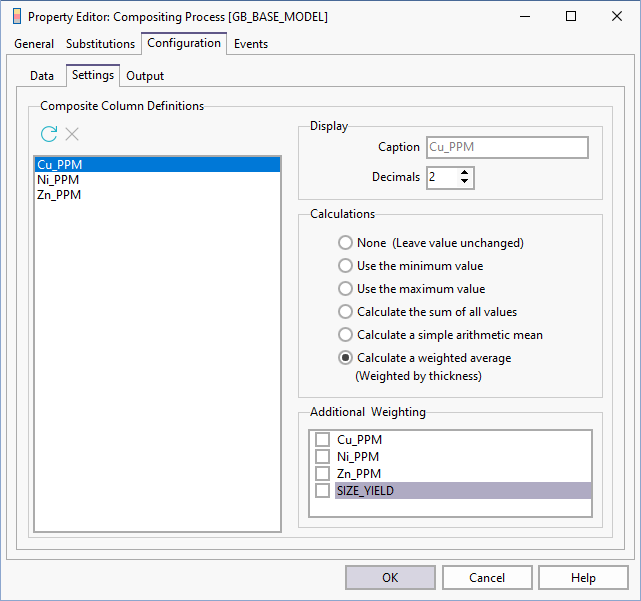
The display name used for each column in the output file and the number of decimal places that will be used in the display (and in calculations) can be specified.
Calculation options are disabled for some columns by default. For those columns that can be calculated, select a calculation option. Calculations can be applied using a weighted average, arithmetic average, or minimum and maximum values.
Calculate a weighted average
If the Calculate a weighted average option is selected, then the columns containing values to be multiplied with the Sample width in the weighting calculation can be selected in the lower right-hand pane.
Where appropriate, Size yield and Wash yield values will be selected by default. If additional analyses have been included in your result set, then additional weighting parameters can also be selected.
For example, if a column containing ash analysis values was the column selected in the left-hand pane, a weighting could be obtained by selecting Ash in addition to the Size yield and Wash yield.
Output
The following output file options are provided:
Output File - Write results to a file
Select this option to write the output to:
- A Comma Separated Values (CSV) text file
- A Micromine Australia Pty Ltd Data file.
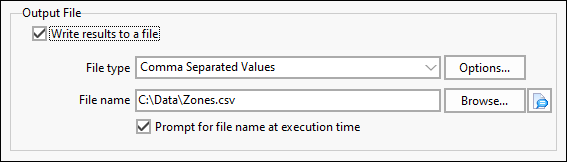
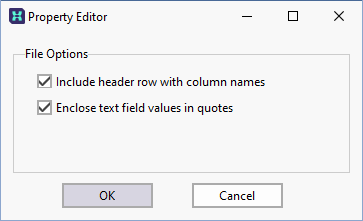
If you select Comma Separated Values (CSV) as the output file type, click the Options... button to set the options to Include header row with column names, or Enclose text field values in quotes.
Prompt for file name at run-time
If you prefer to give the user the option of changing the file specification as the process is run, then make sure the Prompt for file name at execution time option is selected.
Substitutions
 Click the Substitutions button alongside the file Browse button to select and insert a substitution parameter when specifying the output file name. See: File Name Substitutions
Database Update - Write results to the Micromine Geobank database
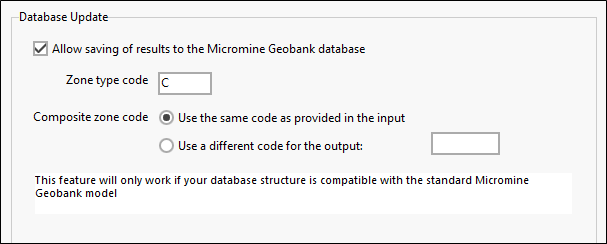
When this option is selected, the Zone Code and Zone Type given to the composited zone, and the results obtained for the composited zone, are written to Named_Zone and Name_Zone_Result tables in the database.
This feature will only work if your database is compatible with the Micromine Geobank standard data model.
Zone type code
Specify a Zone type.
Composited zone code
The composited zone created as part of the process can be given a Zone code which may or may not correspond to the code of the original zone.
The Zone Code and Zone Type should indicate the type of the original zone and identify the set of results used during the compositing process. S10_2M_bot, for example, might be the Zone Code given for a zone S10 which was composited 2 metres from the floor of the seam.