Geophysics (.LAS) File Import Wizard
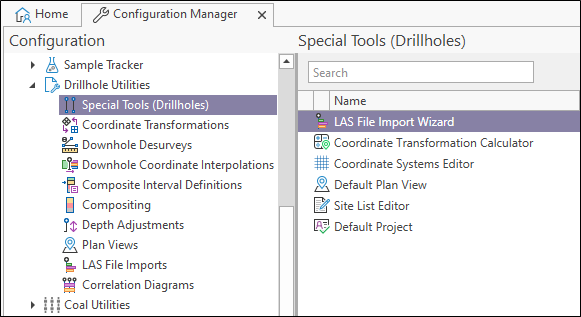
Use the Drillhole Utilities |Special Tools | LAS File Import Wizard to import one or more LAS file headers. The option of importing downhole readings is also provided.
A Log ASCII Standard file (LAS) is a standard file format used to store downhole information on the stratigraphy of a hole. In North America, where the Canadian Well Logging Society oversees the standard, downhole logs are referred to as 'well logs'.
LAS files are generated on a drillhole by drillhole basis, usually from equipment. A single hole may be the subject of several surveys, therefore Micromine Geobank allows for several files to be associated with a given drillhole. The details of each file (including a link to the file itself) are stored in the database.
LAS files are divided into header and data sections. The header is subdivided into a number of smaller sections, each containing a set of metadata pertaining to the survey location, the types of geophysical probes used and various other aspects of the survey.
The Curve Information Block contains short mnemonics and associated unit and descriptions for each of the geophysical readings or 'curve'. These curves correspond to individual user-defined columns in the data section, where the actual results are stored.
Input Files
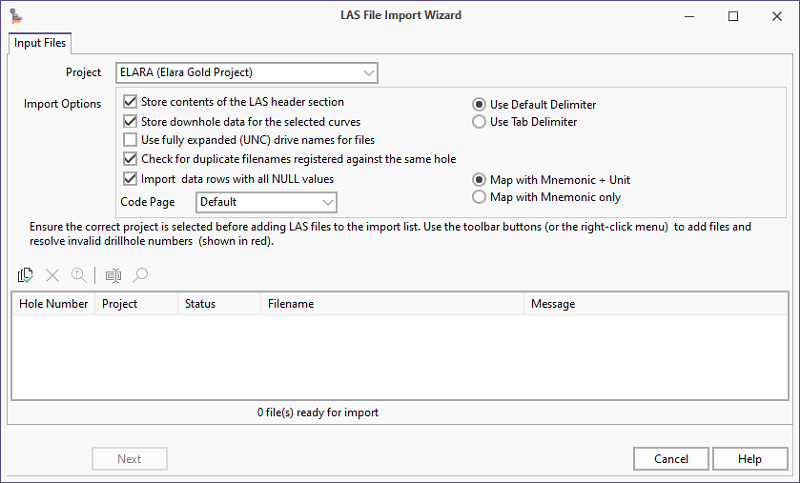
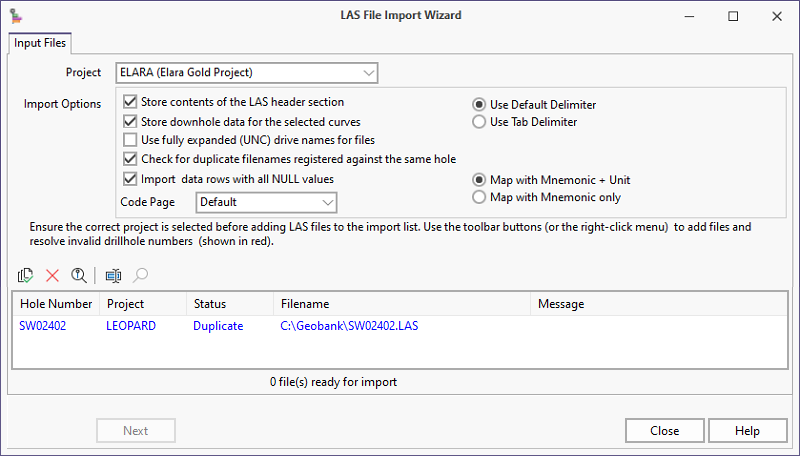
Use the Input Files tab to specify the location of one or more LAS files. Ensure the correct Project is selected before adding LAS files to the import list. Use the toolbar buttons (or the right-click menu) to add files and resolve invalid drillhole numbers (shown in red) or duplicates (shown in blue).

|
Click the Add Files button to navigate to the location of the LAS files you want to import. The files you select are added to the import list. |

|
Click the Remove files button to remove one or more files selected in the import list. |

|
Click the View file button to open a file currently selected in the import list. The LAS file will be opened in a text file editor. However, in order for the View function to work, files with a .LAS file extension must be associated with a text editor. See: View LAS files in a text editor. |

|
Click the Modify drillhole number button (or press F2), to edit the hole number associated with a file currently selected in the import list. |

|
The Well Name or Well Identifier in the LAS file must be matched to a drillhole record in the database. Click the Find drillhole button to locate an unresolved drillhole number. A site list for the current project is displayed. In many cases, an invalid drillhole number can be quickly resolved by selecting a similar number (i.e. without a leading zero) in the site list. |
Store contents of the LAS header section
This option is selected by default. However, there may be occasions when you want to import downhole data without importing the well information in the header section.
Store downhole data for the selected curves
The curves you want to import (and the curve mnemonics and units typically encountered when importing LAS files) will have been mapped to fields in the GB_LAS_DATA (or equivalent) table. Select this option if you want to store the downhole data associated with those curves.
Since importing downhole data is expensive in terms of disk space, and since this downhole data is readily available in the LAS files, this option is can be deselected.
Use fully expanded UNC drive names for files
Select this option to use fully expanded UNC (Universal Naming Convention) filenames rather than rely on network drive mappings. Which option you select will depend on your network setup and user preferences.
Check for duplicate filenames registered against the same hole
This option is selected by default. While it is valid for more than one LAS file to be linked to the same hole, those files should have unique names. Select this option to display a warning if a file selected for import, is already registered against the same hole.
If a duplicate file
name is encountered, its status will be shown as "Duplicated" in the import list. To display a warning, select the Check for duplicate filenames option.
Delete Data From Database
Select the Delete Data From Database right-click menu option to delete all the data for a specified LAS file marked as "Duplicate". This option is only available when a duplicate file is selected in the list.
All LAS instances that match the selected project, site identifier and file name (excluding the path) will be deleted. This action cannot be undone.
Import data rows with NULL values
If rows contain null values, you can choose to ignore them.
Code Page
If the source language of the input file is not English, It may be necessary to change the default code page. OEM866 is a code page used for Cyrillic script.
Use Default or Tab Delimiter
If the input files are TAB delimited, it may be necessary to change the default delimiter.
Map with Mnemonic + Unit or Mnemonic only
By default, Micromine Geobank will perform the LAS import using the mapped Mnemonic and the Unit values. This allows the mappings to be more specific with less frequent need for change. You can select the Map with Mnemonic only option to use the Mnemonic only mappings (as used in versions prior to Micromine Geobank 2021.5).
Note: The two-part mapping code option introduced in Micromine Geobank 2021.5 does not affect the mappings for, or the functionality of, the Mnemonic-only mapping option which is still available.
Next
After adding files and resolving invalid drillhole numbers, click the Next button to continue.
Column Mappings
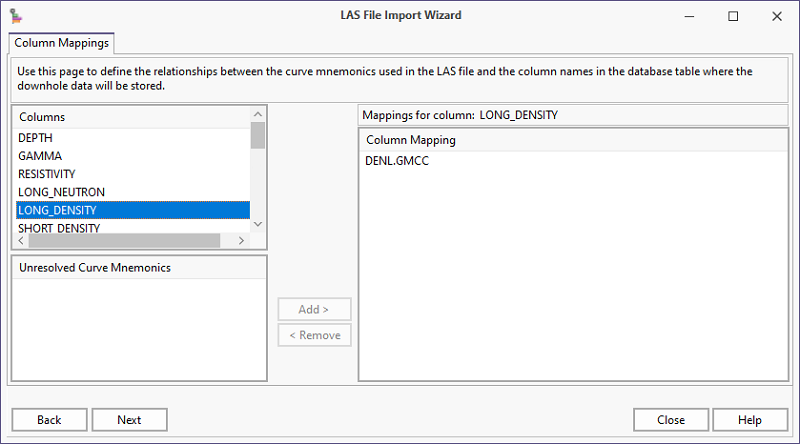
The main problem with LAS files is that the mnemonics used for the various curves are not always consistent; therefore it can be necessary to manually map the curves to the corresponding columns in the database.
Use the Column Mappings page to define the curve mnemonics used in the LAS file and the column names in the database table.
Next
After adding files and resolving invalid drillhole numbers, click the FINISH button to import the files in the import list. The files you have selected are displayed.
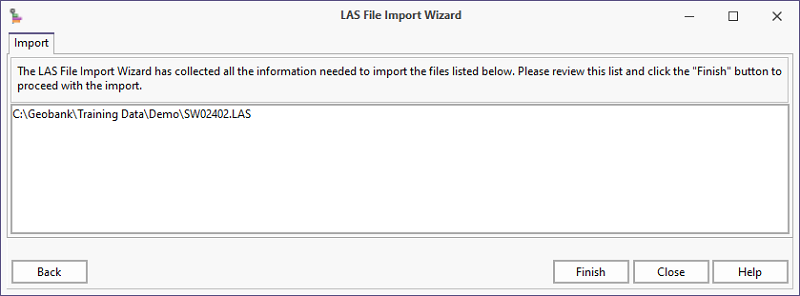
Either click the Back button to change your file selection, or click Finish to proceed with the file import process.
Click Close to finish.